 Strewn
How to delete duplicate photos on iPhone
On iOS 16 and later, open Photos, tap Albums, scroll to Utilities and open Duplicates. Select the pairs you want and tap Merge. The Photos app keeps the best version, combines the details and moves the other copy to Recently Deleted, where it stays for 30 days.
Coming soon to iPhone
Where do I find duplicates in Photos?
Open the Photos app and tap Albums. Scroll down to the Utilities section and tap Duplicates. If the album is missing, iPhone may still be indexing your library, which needs the phone to be locked and charging and can take a while for large libraries. Apple explains this on its page about the Duplicates album.
The album only appears on iOS 16 and later, and it only shows items that Photos considers exact or near-exact copies.
How do I merge them?
The steps are quick:
- Open Photos, tap Albums, then Utilities, then Duplicates.
- Tap Select in the top corner.
- Tap the groups you want, or tap Select All.
- Tap Merge and confirm.
- Check Recently Deleted if you want to confirm what moved.
What does Merge actually do?
Per Apple's description, Photos keeps the version with the highest quality and relevant data, merges details such as captions, favorites and keywords from the copies, and moves the other copies to the Recently Deleted album. Recently Deleted holds items for 30 days before they are removed for good, so you have a window to recover mistakes. Your iCloud Photos setting matters too: with it on, deletions sync across devices.
Why are some similar photos not listed?
The album targets duplicates, not look-alikes. Ten burst frames of a dog running are different pictures, and Photos will not call them duplicates. A trip with three angles of the same view will not appear either. That gap is where manual sorting, or a tool aimed at near-duplicates, helps.
How is that different from what Strewn does?
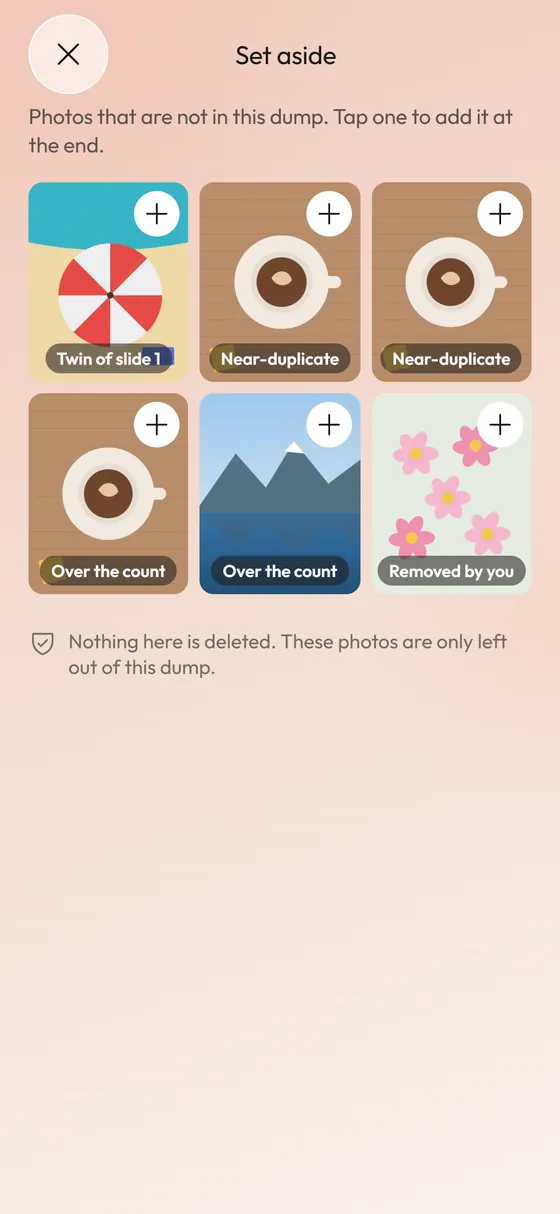
Strewn does not delete anything. For a dump, it computes a 64-bit difference hash from a tiny grayscale thumbnail of each photo you picked, groups photos that differ by 10 bits or fewer, keeps the sharpest of each group and moves the twins to a Set aside tray as Twin of slide n. Your photo library is never touched. The idea follows perceptual hashing. Full detail is in burst folding and Set aside.
That makes it a companion to the Duplicates album, not a cleaner. Use the album to free storage. Use folding to pick ten good slides from sixty.
What should I do about bursts and near-twins?
Open the burst in Photos, tap Select and mark the frames you want to keep, then use the Favorite tag or delete the rest by hand. For a one-off dump, you may not want to delete at all. Folding leaves everything in place and only decides what goes on the slides.
The Burst mode) photo set from a long shutter press is the most common source of near-duplicates on an iPhone.
Should I use a third-party cleaner app?
That is a personal call. Cleaner apps scan more aggressively and can find similar photos, but they ask for broad library access and some push subscriptions. Check what the app reads and whether it deletes automatically. Whatever you use, review the proposed deletions yourself, since the sharpest frame is not always the one you love.
How do I avoid creating duplicates?
A few habits keep the library tidier:
- Turn off Live Photos when you do not need them.
- Delete obvious misses right after a burst.
- Favorite the keepers so you can find them later.
- Avoid importing the same folder twice from a computer.
- Save edited versions as copies only when you need the original.
What if I want to keep both copies?
Skip Merge. In the Duplicates album you can leave the pair alone, or open one and mark it as a Favorite to remember which you prefer. Photos does not delete anything without your tap, so the album is a suggestion list, not an automatic cleanup. If you edit the original, the edited version may be treated as different from its source and stop appearing in the list.
Which is better for a dump: delete first or fold first?
Fold first, delete later. If you only need ten slides, you do not need to remove anything from your library. Pick a set and let a folding step choose among near-twins. After posting, clean up on a separate day when you have time to review. Doing both at once leads to deleting things in a hurry.
Strewn follows that approach. Photos not in the dump are labeled by reason in Set aside: Near-duplicate, Over the count, Removed by you or Could not be read. The tray's footer says nothing is deleted.
How do I check that nothing important was lost?
After a merge, open Recently Deleted and scan the thumbnails. If any look like the better copy, tap Recover. Thirty days is a long window, but it is easy to forget, so do the check the same day. Also confirm iCloud Photos is finished syncing before you rely on a restored version on another device.
Will deleting duplicates free much space?
It depends on how many exist. A few hundred duplicates of ordinary photos may free a few hundred megabytes. Videos and Live Photos free much more per item. Check Settings, General, iPhone Storage to see what is using space before you spend an evening on this.
Frequently asked questions
How do I delete duplicate photos on iPhone?
Open Photos, Albums, Utilities, Duplicates, tap Select, choose groups and tap Merge. Needs iOS 16 or later.
Where do merged duplicates go?
The extra copies move to Recently Deleted, where they stay for 30 days unless you remove them sooner.
Why is there no Duplicates album?
You may be on iOS 15 or earlier, or iPhone is still indexing the library. Keep it locked and charging for a while.
Does Strewn delete duplicate photos?
No. It moves near-duplicates inside a dump to a Set aside tray and never changes your library.
Does the Duplicates album catch burst photos?
Usually not. Burst frames are different pictures, so you sort them by hand or fold them in a dump tool.
Keep exploring
Duplicate Photo Finder for DumpsBursts become one slide; twins wait in Set aside.Private Photo OrganizerSystem picker, on-device analysis, no account, no analytics.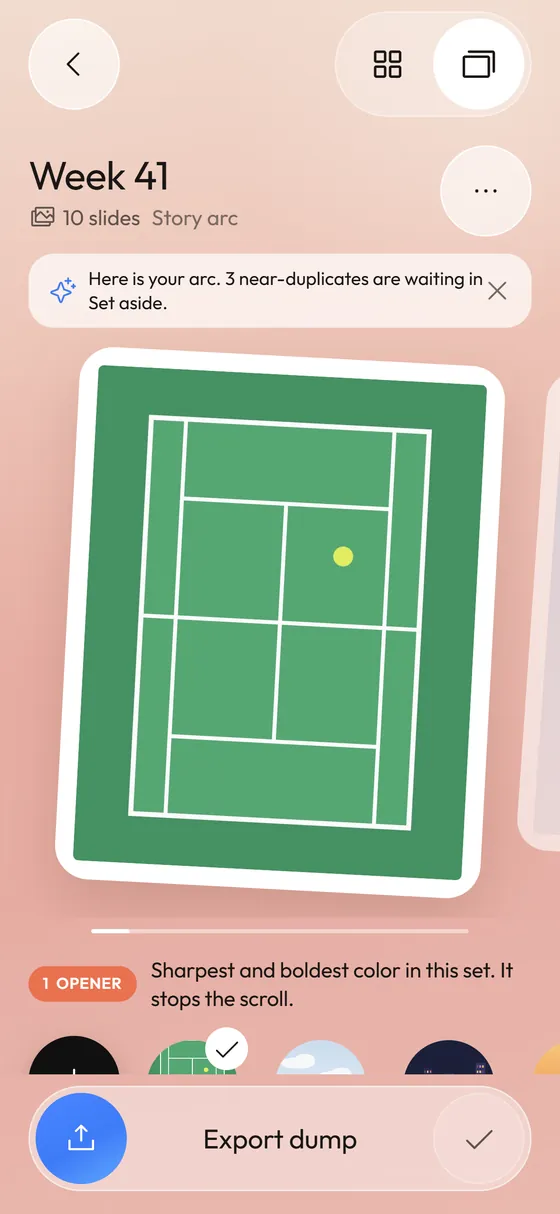 Photo Dump OrderA slide-by-slide order template for a 10-photo dump.
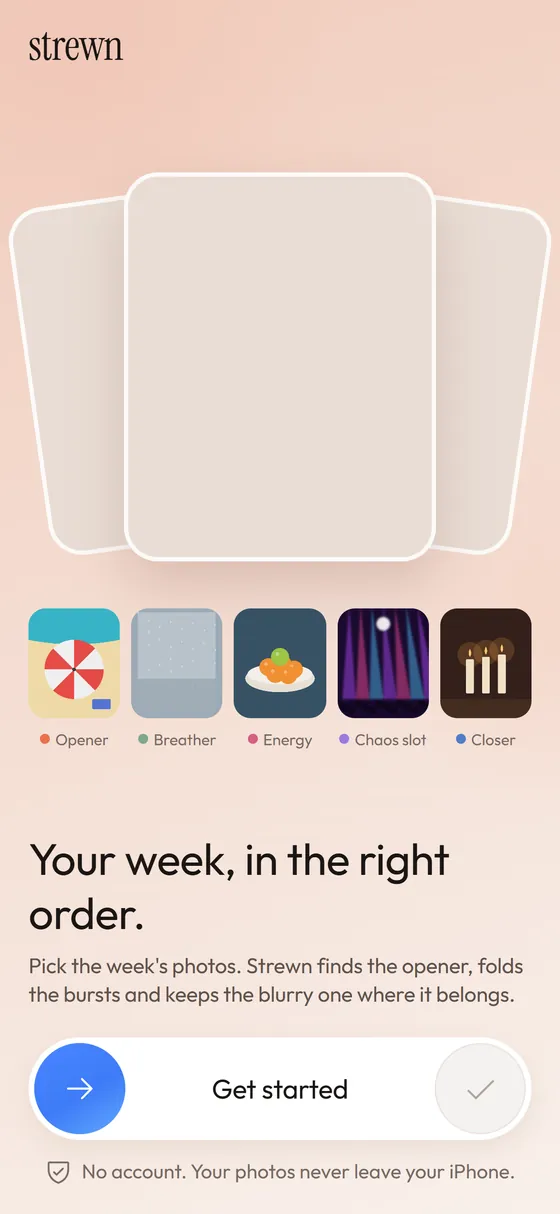 How to Select Multiple Photos on iPhone QuicklyTap, drag and Select All in Photos, plus how pickers handle many photos at once.