 Strewn
How to select multiple photos on iPhone
Open Photos, tap Select, then tap photos one by one or slide your finger across a row to select many at once. Select All is available in the menu. In other apps, the photo picker has its own multi-select button, and the order of your taps often sets the order of the result.
Coming soon to iPhone
How do I select several photos in the Photos app?
The method is the same on all recent iPhones:
- Open Photos and go to Library or an album.
- Tap Select in the top right corner.
- Tap each photo you want. A blue check mark appears on selected ones.
- Tap the share or delete icons at the bottom when you are done.
- Tap Cancel to leave selection mode.
Is there a faster way than tapping each photo?
Yes. After tapping Select, place your finger on one photo and slide across the row, then down. Every thumbnail you touch is selected. Slide back and the selection reverses. This is the quickest way to pick a run of photos taken in sequence, like a day or a burst.
You can also choose Select All from the menu in the top corner of an album, then deselect the few you do not want, which beats picking 200 photos one at a time.
How do I select many photos in other apps?
Most apps use the system photo picker. It opens as a sheet, and Apple handles access to the library separately from the app, so the app only receives the photos you choose. Look for a multi-select icon or a Select button, tap photos, and confirm with Add or Done. Apple's iPhone User Guide covers the Photos basics.
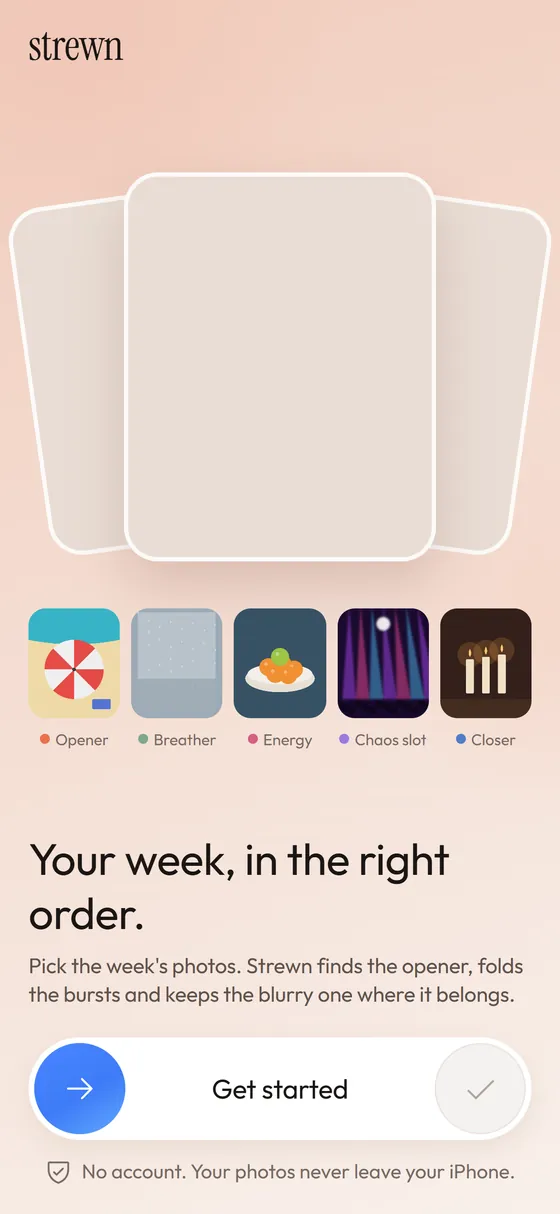
Strewn uses the same picker. The privacy line in the app reads that the photo picker shows your library to you, not to Strewn, and you can pick up to 60 photos for a dump.
Does the order I tap matter?
In many pickers, yes. Instagram numbers photos in the order you tap them, and the numbers appear in small circles on the thumbnails. If you tap the sunset first and the dog last, that is the order of the carousel. Tapping a selected photo removes it and renumbers the rest.
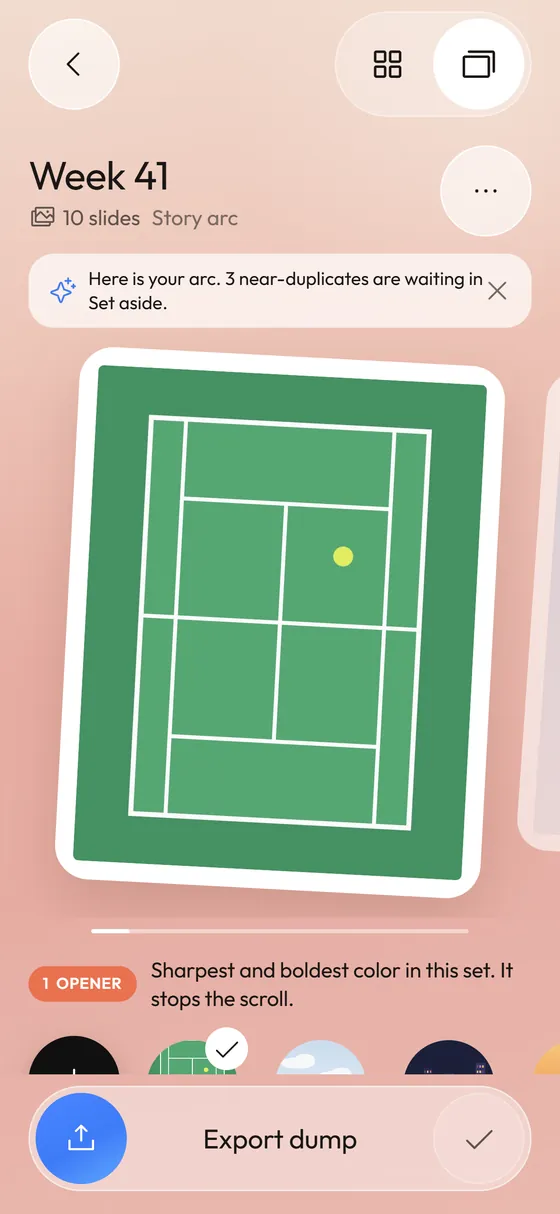
The system picker in other apps may return photos in a different order, such as the order in your library. For that reason Strewn orders photos itself after you pick, and shows the proposed order on the editor strip.
How do I pick photos for a photo dump?
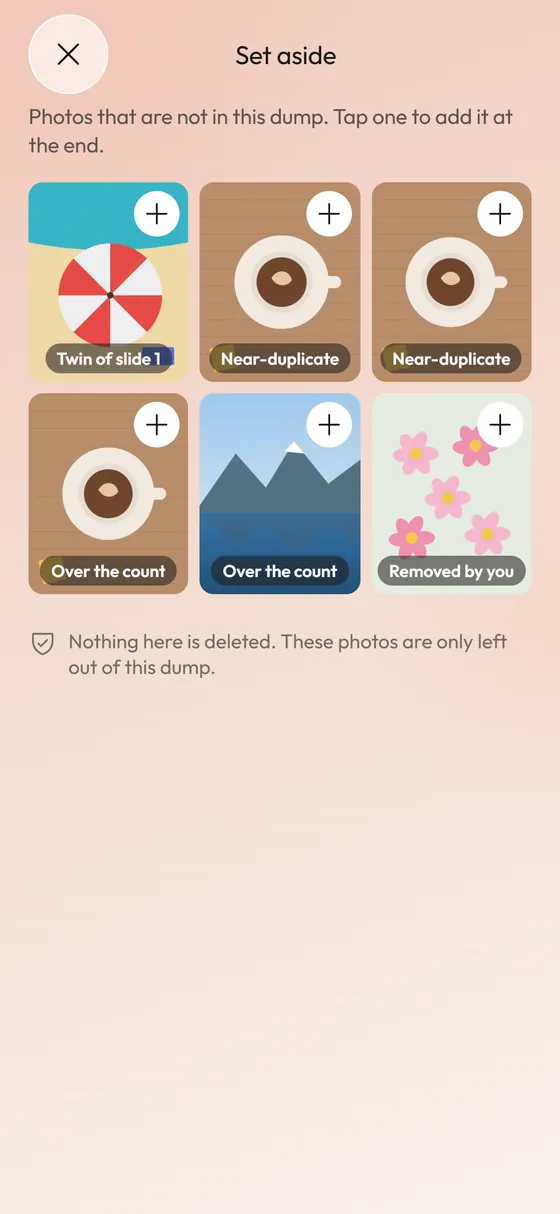
Select more than you need. A good habit is to select 25 to 40 for a ten-slide dump and let the sorting step cut. Strewn accepts 10 to 60 photos at a time. The New dump screen also offers periods such as This week and Last week and A trip, but you pick the photos with the iPhone picker, so the period is a label and a naming help.
Read how many photos a dump needs for the arithmetic.
Why can't I select more photos?
A few causes come up often:
- The app sets a maximum, such as 10 for older Instagram accounts or 60 for Strewn.
- You are in the picker for a different media type, such as videos only.
- The app is out of date.
- The selection is limited for that action, for example setting a single wallpaper.
Can I select photos by date or album?
Yes. Go to Albums and open one such as Favorites, Recents or a trip album, then use Select. The Library tab groups photos by Years, Months and Days, and Select plus a drag across a day gets you every photo in it. In the picker, change the view with the Albums tab to narrow a huge library.
How do I keep the order of a selection?
Make an album first. Create a new album, add the photos and sort it with Custom, Newest First or Oldest First in the album menu. You can then select from the album in the order you see. This is handy when you plan to post a set in a specific sequence.
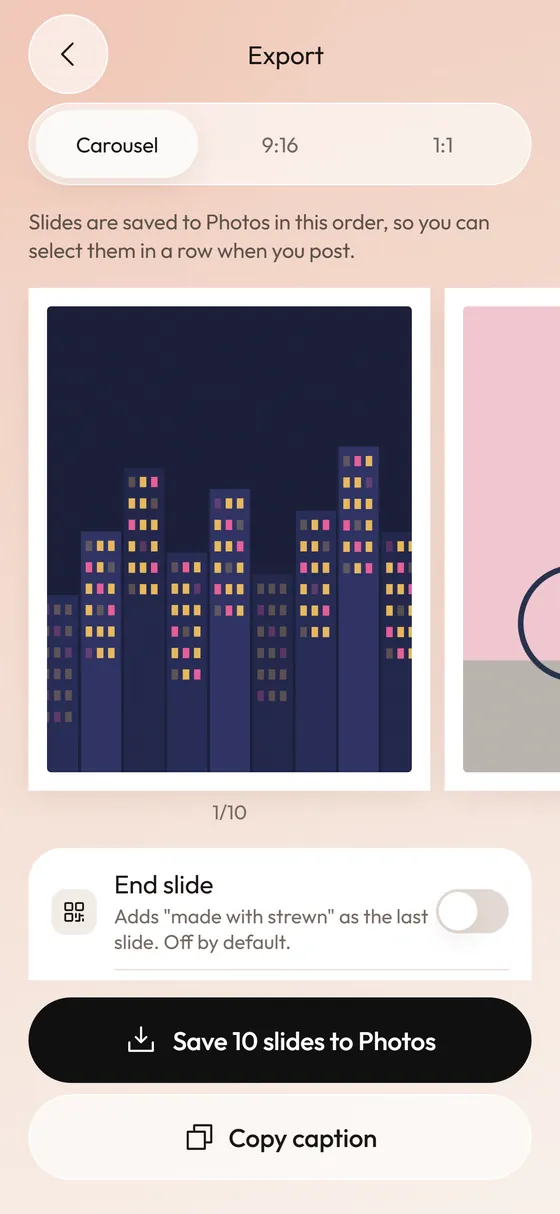
Strewn helps here by saving slides to Photos one by one in dump order, so the newest photos match the sequence. See export details.
What about selecting photos on a Mac or iPad?
The idea is the same. On a Mac, click one photo and hold Shift to select a range or Command to add single photos. On an iPad, use Select and tap or drag. The iCloud library syncs the result, so you can choose on the large screen and post from the phone.
How do I deselect everything quickly?
Tap Cancel or Done to leave selection mode, which clears the selection. In the middle of a pick, the menu may offer Deselect All. Mistakes are cheap, so do not worry about them. You can always tap a photo again to flip it off.
Which accessibility options help with selection?
VoiceOver reads each thumbnail with its date and, if you turned it on, description. Switch Control and AssistiveTouch let you tap without precise gestures. If dragging across a row is hard, tap each photo instead. The Accessibility section of the iPhone User Guide lists the options.
What if the selection is huge?
Do it in chunks. Select by day, share or move each chunk, then repeat. Selecting thousands of photos at once can slow the app and fail on low storage. Free up space first if needed. For a deletion pass, see the duplicates guide.
Frequently asked questions
How do I select multiple photos on iPhone?
Open Photos, tap Select, then tap photos or drag a finger across them. Select All is in the menu for albums.
How do I select all photos on iPhone?
In an album or Library view, tap Select, then open the menu and choose Select All.
Does the tap order matter?
In pickers like Instagram's, yes. Photos are numbered in the order you tap them.
How many photos can I pick in Strewn?
Up to 60 per dump, with a minimum of 3. Ten to 60 is the recommended range.
Why can I only select 10 photos?
The app you are using sets its own cap. Older Instagram accounts stop at 10.
Keep exploring
 How Many Photos Should a Photo Dump Have?Six to twelve slides, with ten as the default, and when to stretch.
 Private Photo OrganizerSystem picker, on-device analysis, no account, no analytics.
 How Many Photos Can You Post on Instagram at Once?The carousel limit, why yours may still be 10 and how long a dump should be.
 How to Post a Photo Dump on Instagram in the Right OrderA short routine for posting a carousel in the order you planned.