 Strewn
How to post a photo dump
To post a photo dump on social media, choose Post, tap the multi-select icon, and tap the photos from first slide to last, since the numbers show the order. Prepare the frame and caption beforehand so you are not rearranging inside the app.
Coming soon to iPhone
What are the steps?
The posting flow on social media is the same for any carousel. Menu names and icons shift between app versions, so treat the labels below as a guide:
Doing the prep outside the social app saves the most time. Decide the order, write the caption and save the slides before you open the app.
- Tap the plus button and choose Post.
- Tap the multi-select icon (two stacked squares).
- Tap the photos in the order you want, first slide first. A number appears on each.
- Tap Next, add edits if you want, then write the caption.
- Check the preview by swiping through, then share.
What should I do before I open the social app?
Ten minutes of preparation outside the app is the difference between a calm post and a fumbling one. Run through this list:
- Lock the order. Decide the opener and the closer first, then fix the middle.
- Check the frame. One ratio and one border style for every slide.
- Write the caption and copy it, so it is on the clipboard when you reach the caption field.
- Save the slides to Photos in one go, so they sit together at the top of Recents.
- Count them. If the number is over 20, trim before you start tapping.
- Charge the phone and switch to a good connection, since an upload can fail halfway on a weak signal.
How do I post a dump from Strewn, start to finish?
Here is the whole route, from a camera roll full of candidates to a published carousel. The first six steps happen in Strewn and the rest in the social app.
- Tap the plus disc, choose the period (This week, Last week, Trip) and set the slide count.
- Tap Pick photos and select 25 to 60 from the iPhone picker.
- Wait for the sorting screen. It reads each photo, folds bursts and lays out the arc.
- Swipe the slides in the editor, then swap, move or replace anything that feels off.
- Open Caption, answer a prompt or two and tap Copy caption.
- Open Export, stay on Carousel and tap Save n slides to Photos. Allow Add Photos Only when iOS asks.
- In the social app choose Post, open the multi-select picker and tap the newest slides from first to last.
- Paste the caption, preview the swipe and share.
What do I check in the preview?
The preview is your last cheap chance to catch a mistake. Swipe all the way through once at normal speed, the way a follower would. Look at three things: whether slide one is the sharpest and boldest, whether any slide is cropped differently from the rest, and whether the last slide feels like an ending.
If something is off, go back instead of pushing ahead. Sharing and then deleting a post leaves you with a worse version of the same job.
Can I turn a dump into a collage for Stories?
Yes, and it is a different thing from the carousel. A collage puts several of your photos onto one image, which suits a Story or a message better than a swipe. In Strewn the Export screen has a 9:16 tab for Stories and a 1:1 tab for posts and chats. Pick a layout, adjust spacing, corners and background, and tap Share or Save.
The collage uses the first photos of your dump, or the order you set under Photos in the collage. The free plan includes one layout per format and keeps the small strewn mark.
Which mistakes cost the most time?
The same few slip-ups come up again and again:
- Tapping photos in Recents before the saved slides finish writing, so the numbers land on older images.
- Posting 4:5 slides mixed with a few square ones, which crops some of them.
- Writing the caption inside the social app under time pressure.
- Skipping the preview swipe.
- Forgetting that saved slides stay in your camera roll afterward. Delete them once the post is live if you do not want duplicates.
Why does the order go wrong?
The social app numbers photos in the order you tap them. If you tap in a different order than the one you planned, slides land in the wrong place. Most mix-ups come from photos sitting in Recents in a different order than the plan.
The fix is calm preparation. Open the picker, confirm the first slide is the one you tapped first, and scroll through the numbered thumbnails before you move on.
How do I make the order easy to tap?
Save the slides to your camera roll in dump order, so the newest photos match the sequence. Strewn does this in one tap: Save n slides to Photos writes the slides one by one, so you select the newest photos from the first slide to the last. See the export step.
What if the slides land in the wrong order?
- Tap Back in the post flow and return to the picker.
- Deselect a slide by tapping its number, and the numbers shift up.
- Tap the slides again in the order you planned.
- Swipe through the preview before you continue.
- If it still looks wrong, close the post, check the order of the newest photos in your camera roll and start again.
What size should slides be?
A 4:5 portrait at 1080 by 1350 pixels fills the most screen in the feed. The social app has long used the shape of the first slide for the rest of the carousel, so check the preview for cropping before you share. Strewn exports every slide in one frame (4:5 free, 1:1 and 3:4 with Pro) with a border, so no slide is cropped differently from the others.
If your photos come in mixed shapes, a matte border keeps them inside the same frame without cutting heads off. Strewn offers white on the free plan and cream or black with Pro.
How many slides can I post?
A feed post allows up to 20 photos and videos, according to the help pages of the app you post to. Ten is a comfortable length, and Strewn's free plan builds dumps up to 10 slides, with 20 on Pro.
Can I fix a typo after the post is live?
A caption can usually be edited after sharing. Treat that as a safety net for typos. Slide order is another matter. The safe assumption is that fixing it means posting again, which is one more reason to settle the order before you tap Share.
Keep the original slides in your camera roll until you are happy with the post. They are your backup copy of the plan.
What about a Stories teaser?
After you post, a 9:16 teaser tells followers the dump is up. Strewn builds one from four to seven photos depending on the layout, with a small strewn mark and QR on the free plan, and you add any link sticker yourself in the social app.
Any caption tips?
Keep it short and in your voice. A list of three words or a few numbered lines suits a dump. Write it before you open the social app and paste it in. Strewn has prompts and a Copy caption button for exactly this, covered in captions.
Posting time is a separate question, and the app cannot answer it for your audience. Post when you normally post and keep the routine regular, for example Sunday evening.
Frequently asked questions
How do I choose the order of photos in a carousel?
Tap the photos in the order you want them. The social app numbers them as you tap, and the numbers are the slide order.
Can I rearrange slides after I start posting?
You can remove and re-add slides in the picker, but it is easier to plan the order beforehand.
Why are my carousel photos cropped?
The shape of the first slide is generally applied to the rest, so slides with other ratios can be cropped. A single frame for every slide avoids that.
Can Strewn post to social media directly?
No. Strewn saves slides to Photos or opens the share sheet, and you post from the app you choose.
How many photos can I put in one post?
Social apps allow up to 20 photos and videos in a single feed post.
Do the saved slides stay in my camera roll?
Yes. Strewn adds them to Photos and does not remove them afterward. Delete them yourself once the post is live.
Keep exploring
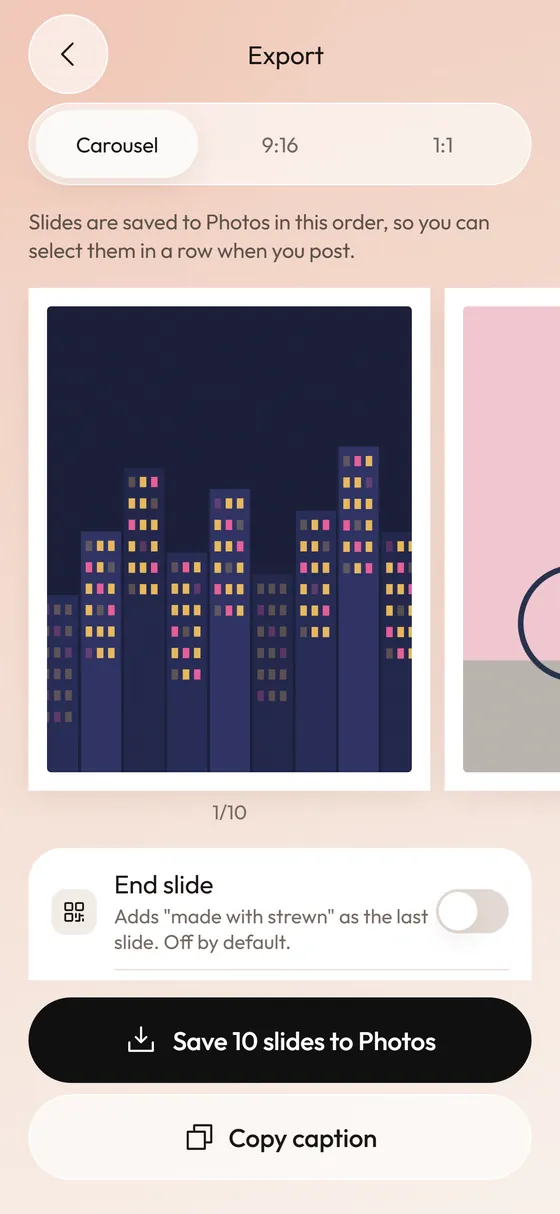 Photo Dump Carousel and Collage Export for StoriesCarousel slides, a 9:16 teaser and a 1:1 collage.Photo Dump CaptionsCaption formats and prompts that start fast.What Is a Photo Dump? Meaning, Examples and How to Make OneMeaning of a photo dump, what goes in one, and how to make yours.